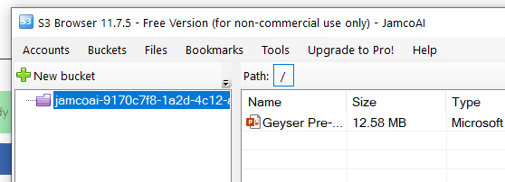
- Open the S3 Browser application
- Click on the Accounts tab and select Add New Account


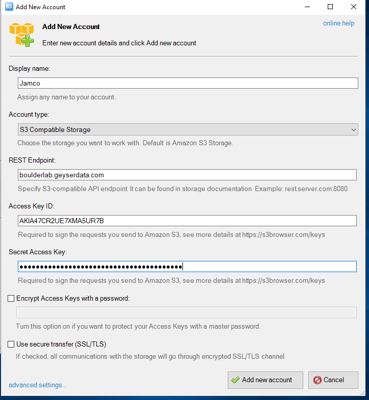
- On the New Accounts tab, enter a name, whatever you want. Select S3 Compatible Storage. Enter the URL address of the library as you see on the console.geyserdata.com page, should be the same as the example below. Enter the Access Key and the Secret Key directly copied from the console when you create the keys. Unselect Use Secure Transfer.

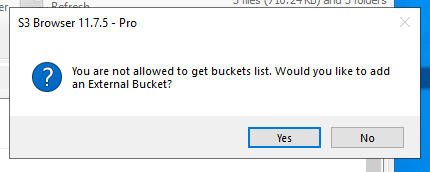
- After you hit enter to add the account, you should get the following pop-up telling you you cannot browse buckets on the account. This is an artifact of this tool being designed specifically for AMZN S3. You need to add an External Bucket, hit Yes.

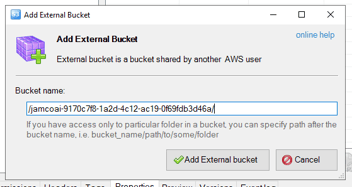
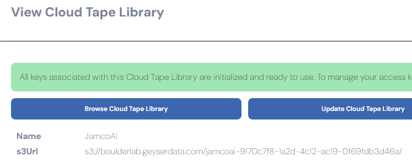
- You will see the following popup. Here you will enter the bucket name from the Geyser Data console, see second image. Be sure to enter both the first and second /.


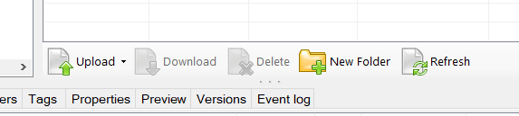
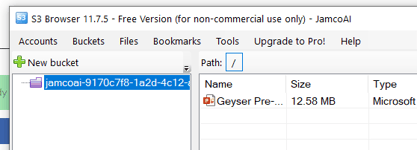
- After you hit the Add External Bucket button, you should see an image like the above with the bucket showing on the left side of the S3 Browser. If you have connected it to an existing bucket, you will see the content. If not, you can hit the Upload File button to send data to the Geyser cloud.